A PDF can become too large at the least convenient moment. A job application portal rejects a résumé, an email provider blocks a report, or an online form sets a file-size limit that the document exceeds by a few megabytes.
Compression can solve the immediate problem, but the way a tool processes the file also matters. Many online services send documents to a remote server, where compression takes place before the smaller file is returned. Browser-based local processing follows a different path: the work happens on the user’s own device.
Understanding that difference helps users choose an appropriate method for reports, résumés, application materials, contracts and scanned documents.
A PDF is a container that can hold text, images, embedded fonts, forms, annotations and other data. Its size depends on how those elements were created.
High-resolution images are a common cause of large files. A report containing full-size photographs may be suitable for professional printing but unnecessarily heavy for email or screen viewing. Scanned documents can be even larger because every page may be stored as an image.
Other factors include:
Two PDFs with the same page count can therefore have very different file sizes. A 50-page text report may be smaller than a five-page scanned brochure.
A conventional online compression service usually follows a simple sequence:
This approach can move demanding processing away from the user’s device. It also means the document leaves the device during the workflow.
That may be acceptable for a public brochure or a freely available research paper. Users should think more carefully when a PDF includes personal details, employment information, internal business data or other sensitive material. Privacy policies, retention periods and data-handling practices deserve review before any confidential file is uploaded.
Local browser compression keeps the processing task on the user’s device. The browser uses available computing power and memory to work on the selected PDF, then creates a compressed version for download.
The file does not need to be transferred to a compression server. This can reduce one source of privacy concern and may be useful when handling résumés, HR materials, internal reports or application documents.
Local processing still depends on the browser and device. A large, image-heavy PDF may require more memory and take longer to process on an older laptop or a device with limited resources. The browser should remain open until compression finishes.
Users should also remember that local processing applies to the compression step. Any later action, such as emailing the file or uploading it to an application portal, sends the document through that service’s own systems.
PDF compression involves a trade-off between file size and visual quality. A stronger setting may create a smaller file, while text, photographs, charts or screenshots can lose clarity.
Three broad levels are useful for different situations.
Light compression is suitable when visual quality matters and the PDF needs only a modest size reduction. It may work well for portfolios, illustrated reports and presentation materials containing detailed graphics.
Balanced compression aims for a practical middle ground. It is often appropriate for email attachments, business reports, educational materials and general office documents.
Strong compression prioritizes a smaller output. It may help when a portal has a strict upload limit or when a large scanned file needs a substantial reduction. The result should be checked carefully, especially if it contains small text, signatures, tables or diagrams.
The first attempt does not need to be the final one. Users can begin with a lighter setting, inspect the result and move to a stronger level only when the file remains too large.
PDF-Compress.ai is a free local PDF compressor that runs in the browser. Users select their files, choose Light, Balanced or Strong compression, process them on the device and download the results. Registration is not required, and the output does not include a watermark.
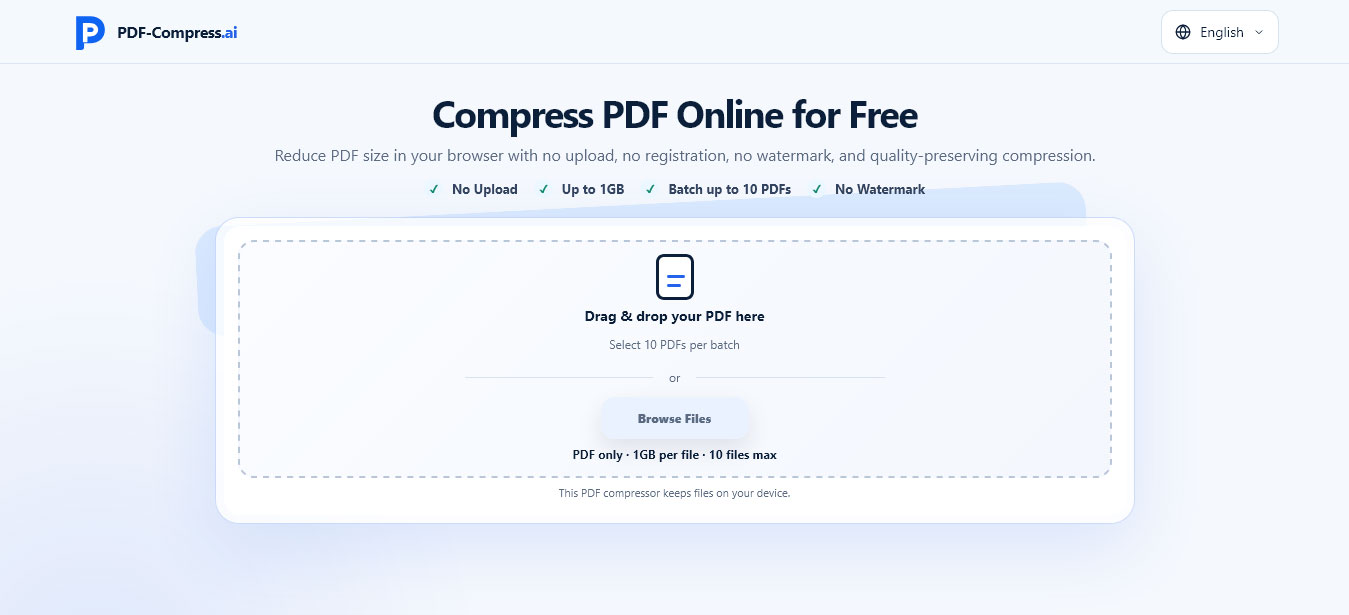
The tool allows users to select up to 10 PDFs in one batch, with a selection limit of 1 GB per file. Actual processing capability and compression results depend on the structure of each PDF, the browser and the device’s available memory.
Batch selection can be useful for a group of application documents, monthly reports or archived scans. Each resulting file should still be reviewed individually before it is sent, uploaded or stored.
Compression is especially useful for PDFs that contain:
Text-focused PDFs may already be compact. If a file contains mostly searchable text and optimized fonts, compression may produce only a small reduction.
A PDF can also contain images that have already been heavily compressed. Reprocessing them may offer limited savings while reducing clarity. This is why compression results vary even when two documents appear similar.
A brief pre-compression review can prevent avoidable mistakes.
First, confirm that the selected file is the correct version. Compressing an outdated résumé or draft report wastes time and can lead to the wrong document being submitted.
Next, save an untouched copy. Compression changes how some content is stored, so the original should remain available if the output needs to be recreated.
Users can also remove unnecessary pages before compression. Blank pages, outdated appendices and duplicate scans add file size without helping the recipient.
Finally, check whether the PDF contains sensitive information that should be removed. Hidden comments, personal identifiers and internal notes may still exist even if they are not obvious during a quick visual review.
A smaller file is useful only when the content remains readable and complete. Open the compressed PDF and review it at normal size and higher zoom.
Pay close attention to:
If these elements become unclear, repeat the process with a lighter setting. Strong compression may work for a simple scanned memo while producing an unsuitable result for a design portfolio or technical drawing.
The file should also be tested in the environment where it will be used. Confirm that it opens correctly, remains below the required upload limit and can be attached or submitted without errors.
Compression is often treated as an emergency step performed seconds before a deadline. A simple workflow makes the process more reliable:
A filename such as Jordan_Lee_Resume_2026.pdf is more useful than an automatically generated name such as compressed_file_2.pdf. Clear names reduce confusion when several versions are stored in the same folder.
The tool is accessed through a website, so an internet connection may be needed to load it. The selected PDF is processed locally in the browser rather than being uploaded to a compression server.
No fixed reduction can be guaranteed. Results depend on the document’s images, fonts, scans, existing compression and internal structure.
Strong compression is useful when reaching a strict size limit is the main priority. Light or Balanced compression may produce better results for documents containing detailed images, charts or small text.
PDF-Compress.ai allows users to select up to 10 PDF files in one batch. Each output should be checked separately because the files may respond differently to the same compression level.
PDF-Compress.ai does not add a watermark to the output.
Keeping the original is sensible. It preserves the highest-quality version and allows the user to create another compressed copy with different settings.
Browser-based local compression gives users more control over where the compression process takes place. It can be a practical option for documents that need to meet email or portal limits, particularly when users prefer to keep the file on their own device during processing.
The best result comes from choosing compression strength carefully and checking the finished PDF before sharing it. File size matters, and so do readability, completeness and the way the document is handled along the way.


Discover our other works at the following sites:
Danetsoft is a global web agency headquartered in Indonesia, specializing in web development, managed hosting, and web publishing platform.


 [email protected]
 Magelang, Central Java
 © 2026 Danetsoft. Powered by HTMLy