You may have recorded a great moment on your phone, only to find that the video looks blurry when viewed on a larger screen. An old family video may be filled with noise and missing details, while a compressed social media clip can look noticeably softer than the original. These problems can make otherwise valuable footage difficult to use or share. Fortunately, you can enhance video quality by upscaling resolution, reducing noise, sharpening details, and improving overall clarity with the right tools.
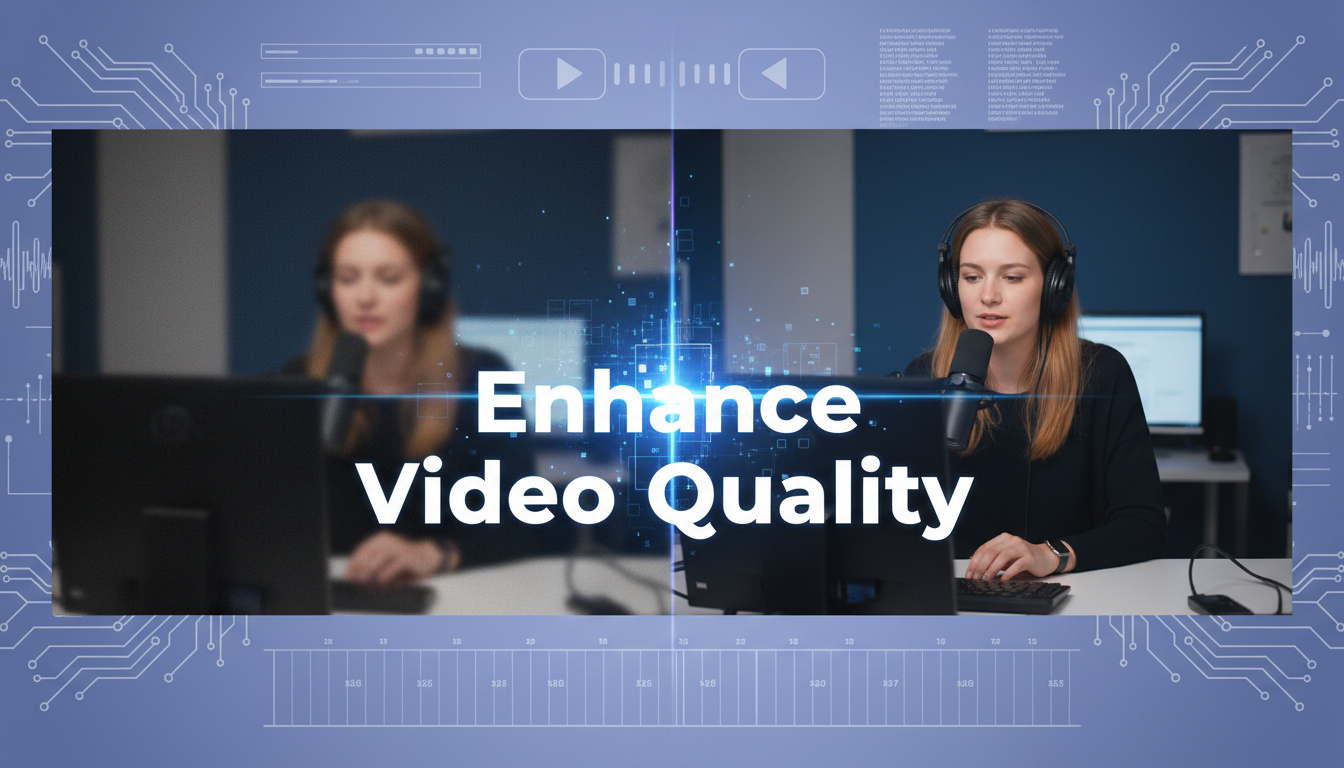
Video quality can deteriorate for several reasons, and different problems require different solutions. A video may have been recorded at a low resolution, captured in poor lighting, affected by motion, or heavily compressed during editing or sharing.
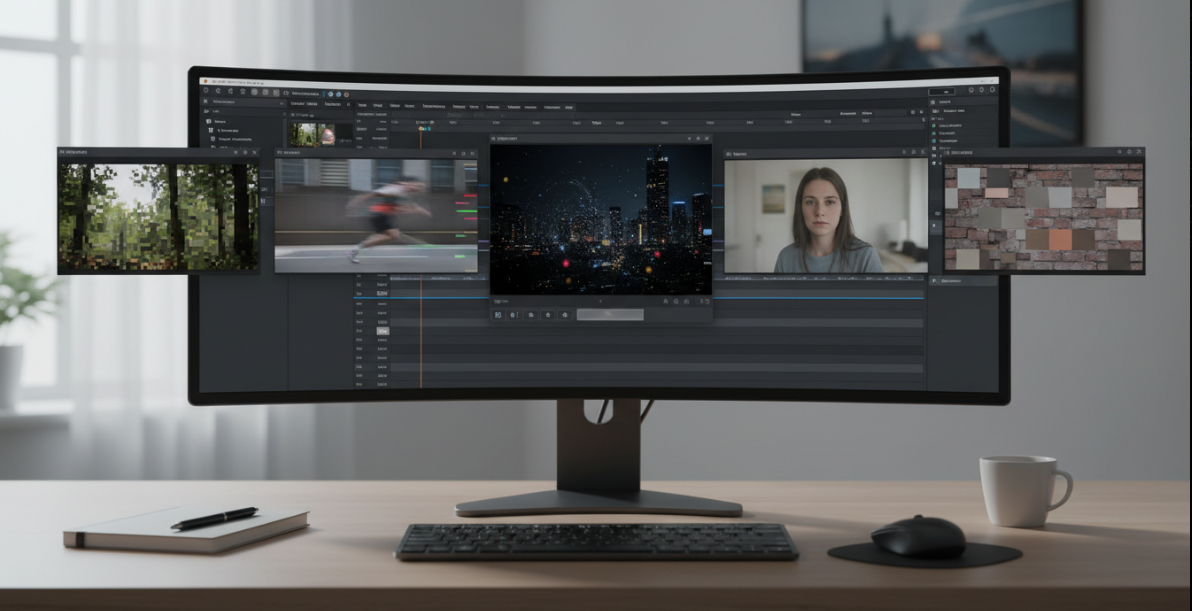
Low-resolution footage contains fewer pixels and therefore shows less visible detail. When enlarged on a larger screen, it can appear soft, pixelated, or blurry.
Out-of-focus recording, fast movement, or camera shake can make important details appear soft. Motion blur can be especially noticeable in sports, action footage, and handheld recordings.
Videos recorded in low-light environments or with high camera sensitivity often contain visible noise and grain. Compression can also introduce unwanted artifacts that reduce overall clarity.
Underexposed footage may hide important details in dark areas, while poor white balance or low contrast can make colors look dull or unnatural.
Uploading or repeatedly exporting a video can reduce its quality through compression. Fine details may disappear and blocky artifacts can become visible, especially in highly compressed footage.
Before choosing a tool or method, prepare the footage and determine what you want to improve.
Use the original video whenever possible. A higher-quality source gives enhancement software more information to work with.
Choose between an AI video enhancer and traditional editing software based on the condition of your footage and how much manual control you need.
Enhanced videos, especially high-resolution exports, can require considerably more storage than the original files.
Decide whether you need 1080p, 2K, 4K, or another output resolution based on where the finished video will be displayed or shared.
HitPaw VikPea is an AI-powered video enhancement tool designed to improve the quality of existing footage. Instead of focusing primarily on cutting and assembling clips, it uses AI models to upscale, restore, sharpen, and enhance videos.
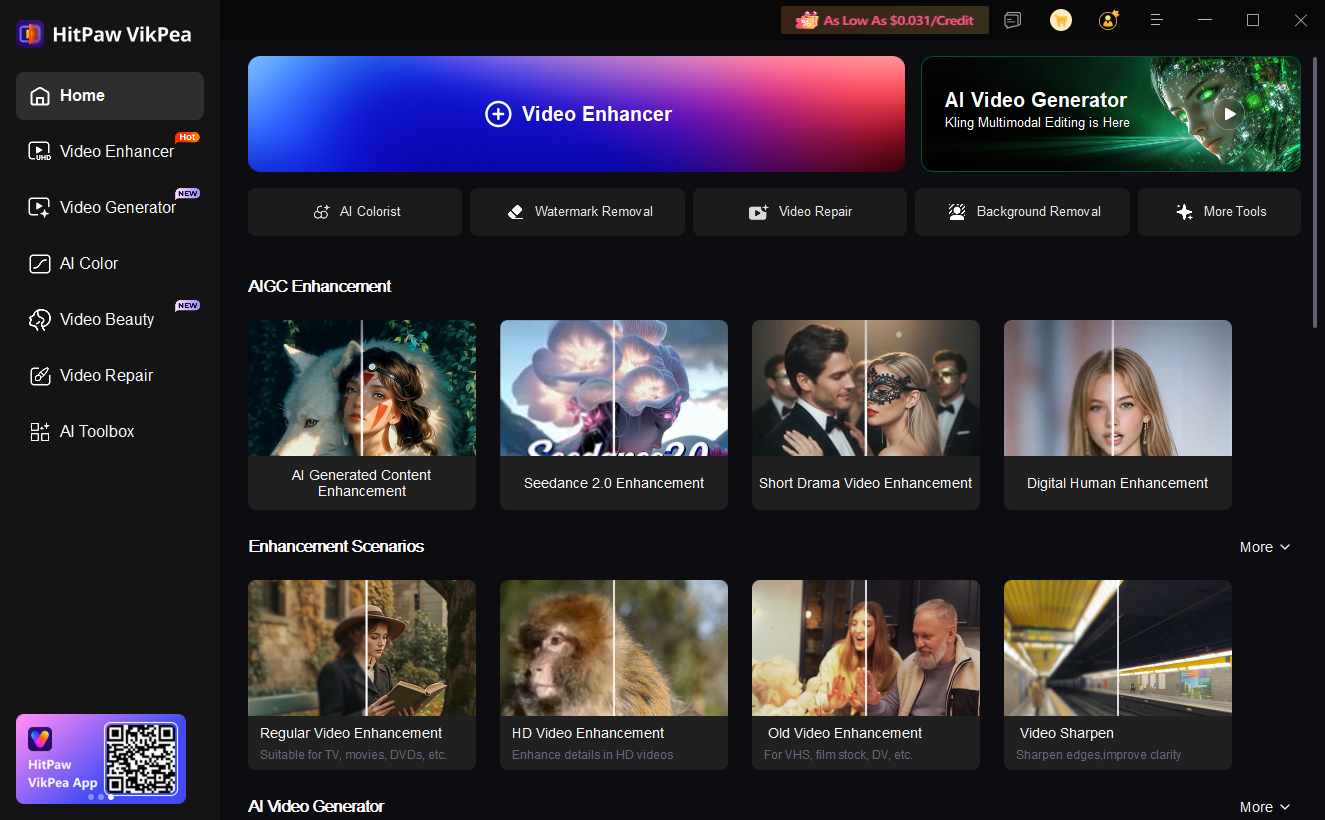
AI Video Upscaling: Upscale low-resolution videos to HD or 4K while enhancing clarity and details.
AI Video Denoising: Reduce unwanted noise and grain, especially in low-light or poorly recorded footage.
AI Face Restoration: Enhance facial details and make faces in low-quality videos clearer. Video Stabilization: Reduce camera shake and make unstable footage smoother.
Frame Interpolation: Increase the frame rate of videos to create smoother motion.
SDR to HDR: Improve brightness, contrast, and dynamic range for a more vivid viewing experience.
Old Video Restoration: Restore old or degraded footage by improving clarity, reducing noise, and recovering visual details.
Pros:
AI-powered video enhancement
Easy-to-use interface
Multiple AI enhancement models
Supports high-resolution output
Suitable for blurry, noisy, and low-resolution videos
Cons:
Not a full-featured video editor
Some advanced features require a paid plan
Processing speed depends on video and hardware
Step 1: Download and Install HitPaw VikPea
Download HitPaw VikPea from the official HitPaw website and install it on your computer. Launch the software after installation to access its AI-powered video enhancement tools.
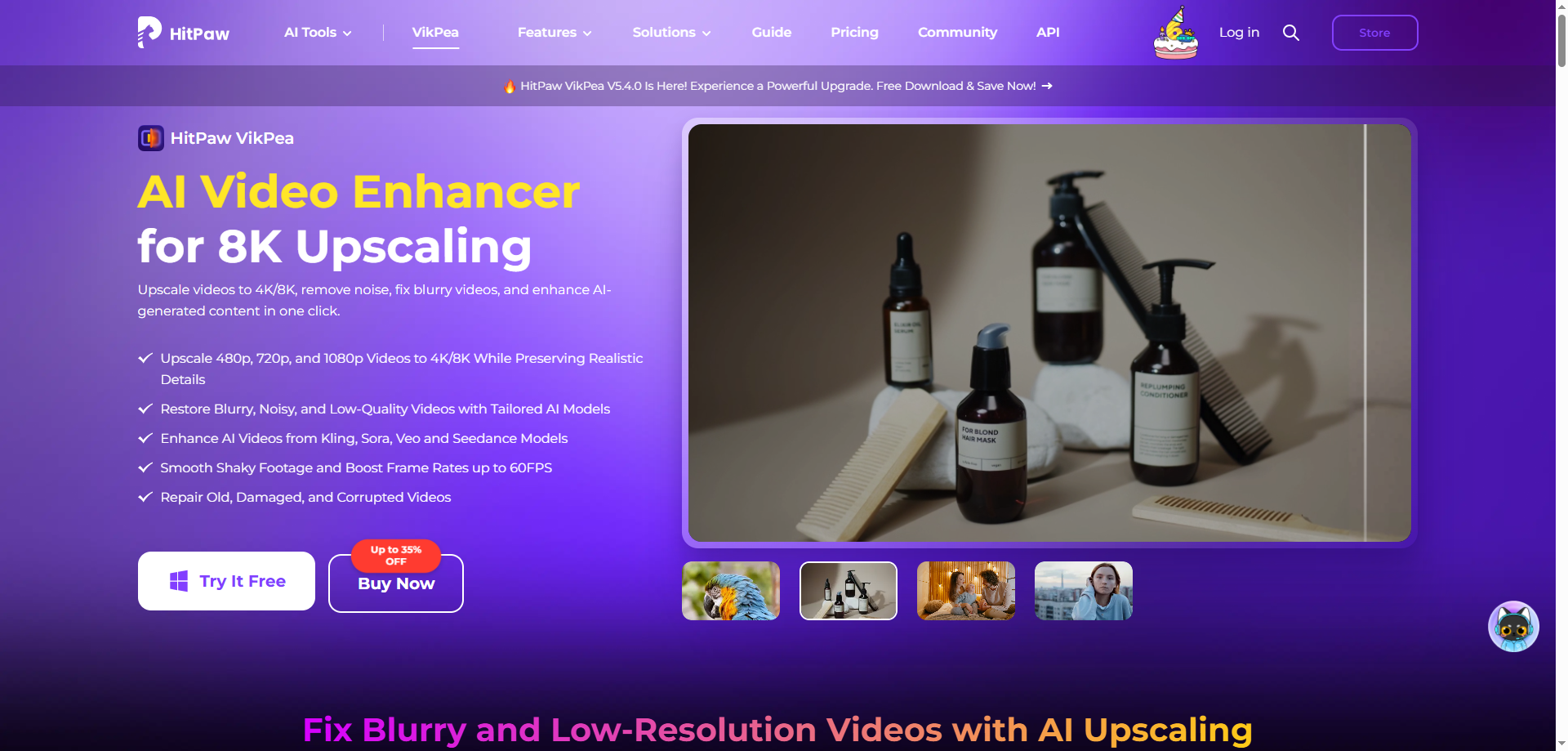
Step 2: Import Your Video
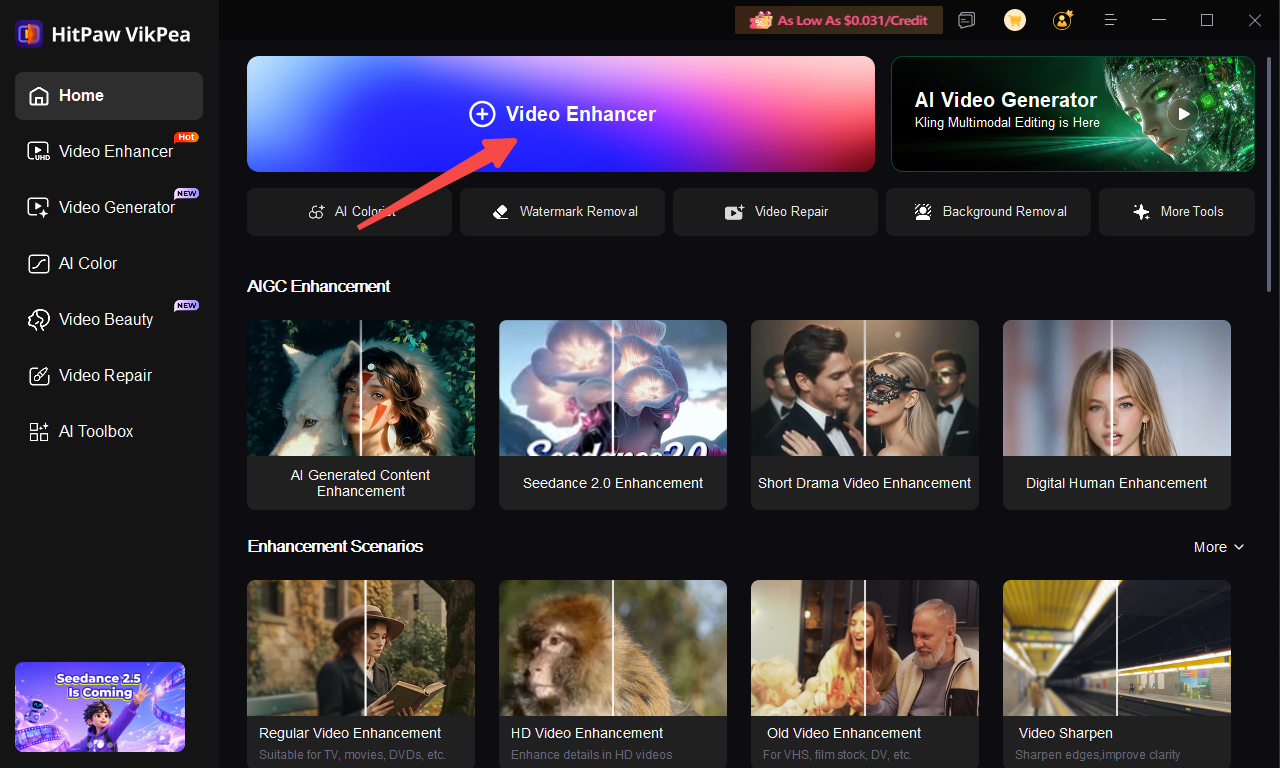
Open HitPaw VikPea and click Video Enhancer to import the video you want to improve. The software supports various video formats, making it easy to work with different types of footage.
Step 3: Choose an AI Model
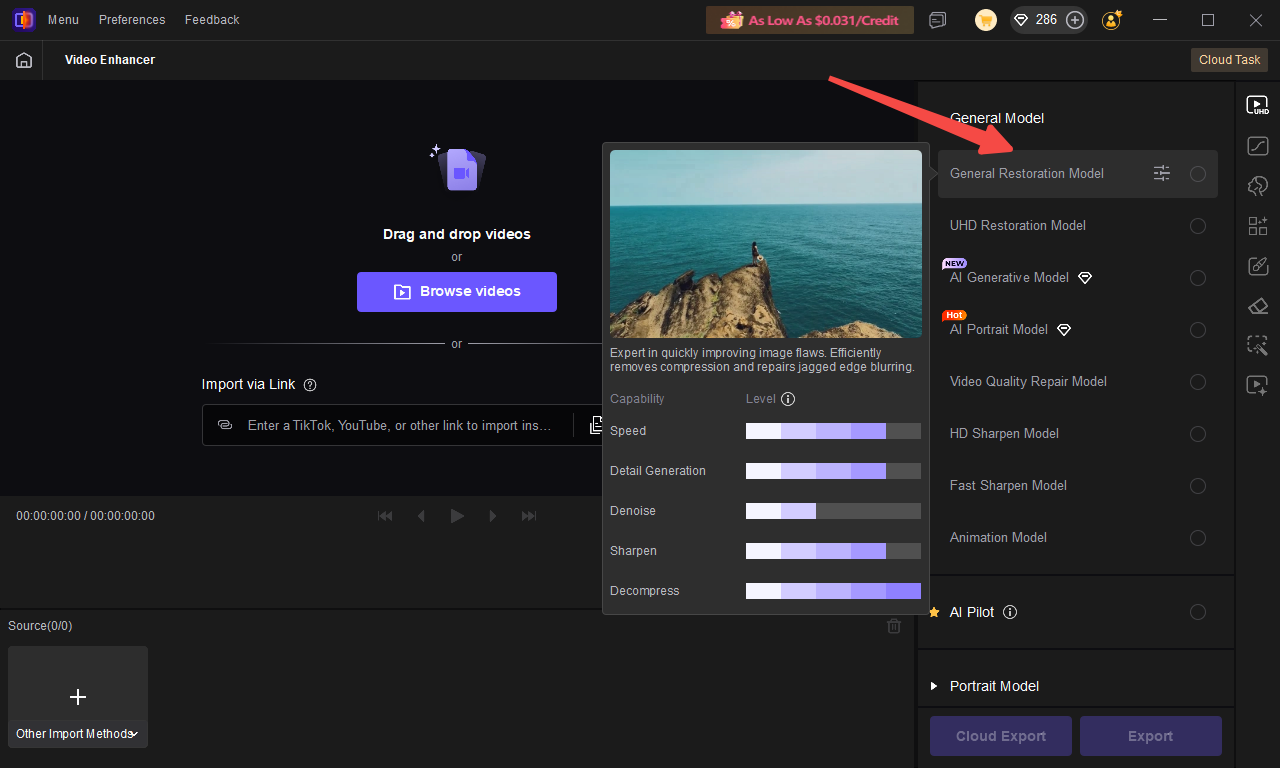
Select the AI model that best matches your video. Depending on your footage, you can choose models designed for general enhancement, noise reduction, face restoration, low-quality footage, or other specific enhancement needs.
Step 4: Preview the Enhanced Result
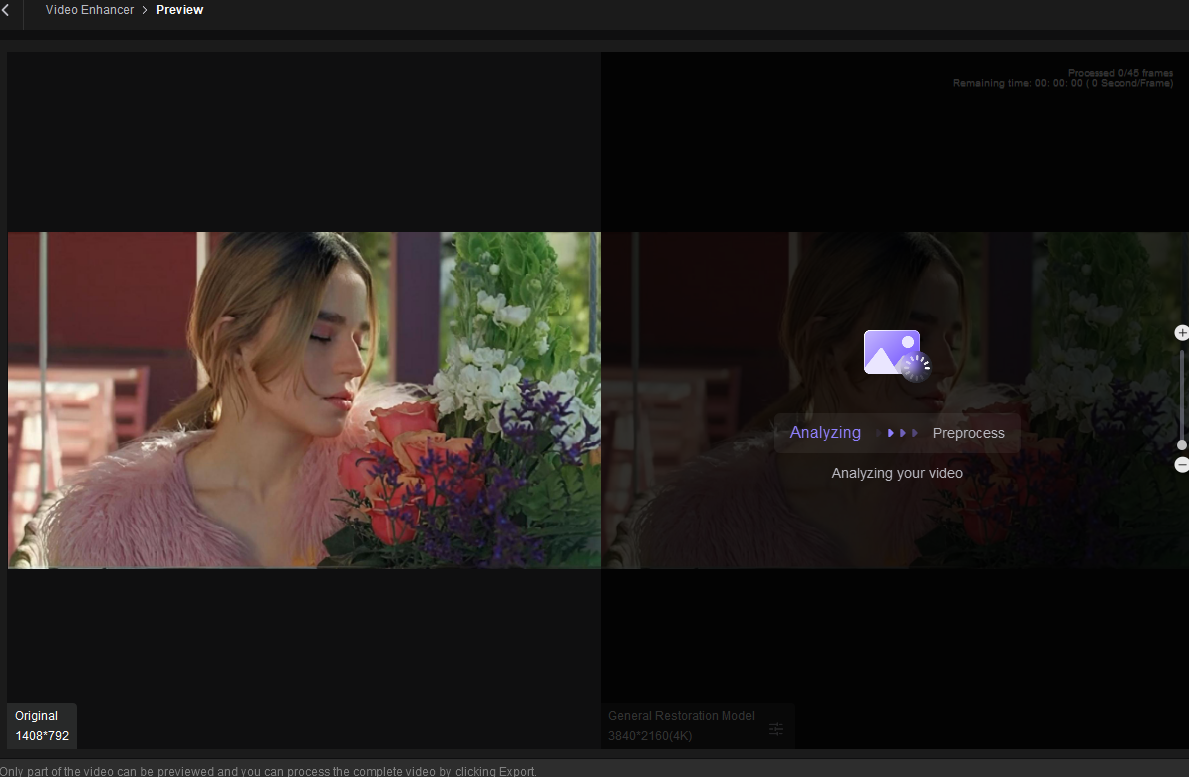
After selecting an AI model, use the preview function to compare the original footage with the enhanced result. Check details such as sharpness, noise, facial clarity, and overall image quality before exporting.
Step 5: Export the Enhanced Video
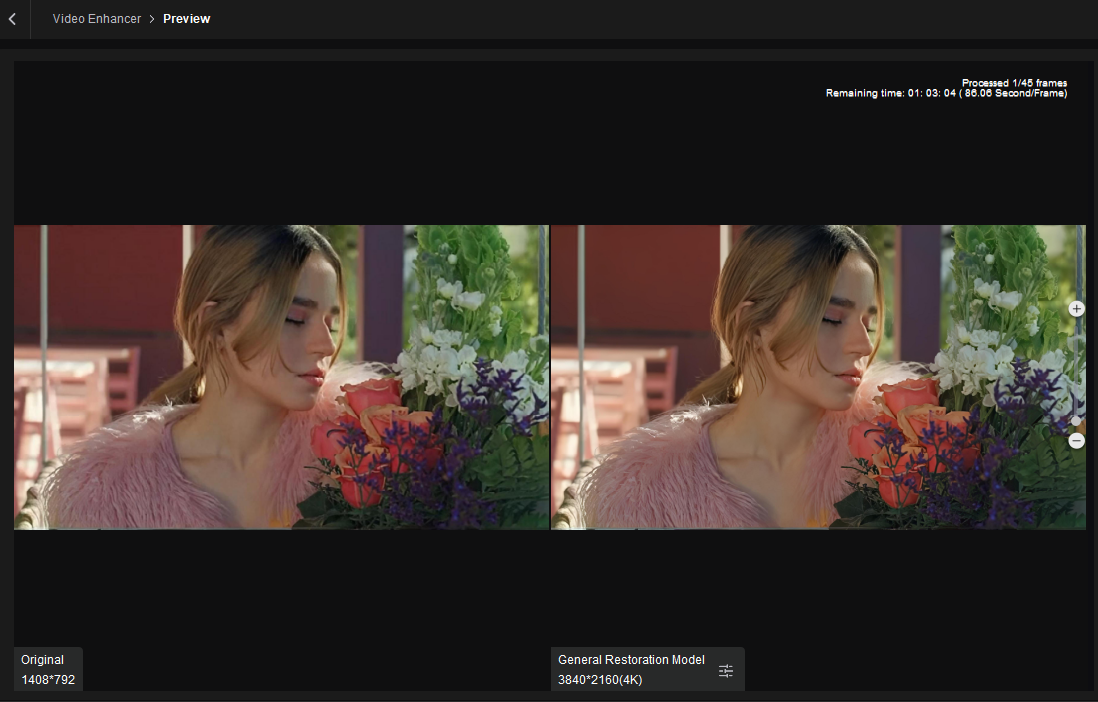
Once you are satisfied with the result, choose your preferred output settings and click Export to save the enhanced video. You can then use the improved footage for editing, sharing, or other projects.
💡 Tip: Don't automatically apply the strongest enhancement setting. A moderate adjustment often produces more natural results, especially when the original footage already contains reasonable detail.
Traditional video editing software gives users greater control over individual adjustments. This approach is useful when the footage mainly needs manual color correction, exposure adjustment, sharpening, stabilization, or other targeted edits.
Increase exposure or shadows when footage is too dark, and adjust contrast to make important details easier to see.
Moderate sharpening can make soft details more defined, but excessive sharpening may create unnatural edges.
Apply noise reduction when grain or digital noise is distracting, while avoiding settings that make textures look overly smooth.
Adjust white balance, saturation, and color balance to make the footage look more natural.
💡 Tip: Traditional editing is better when you need precise control over individual visual elements, but it can require more time and editing experience.
Changing a video's resolution does not automatically restore lost details. Use AI upscaling when you need to improve both resolution and visible detail.
Too much sharpening can create halos and unnatural edges. Apply sharpening gradually and compare the result with the original.
Removing too much noise can also remove useful textures and details. Use moderate denoising to maintain a natural appearance.
Enhancement tools cannot recover every detail that was never captured. Always start with the highest-quality source available.
Even a well-enhanced video can lose quality if it is exported with excessive compression. Choose an appropriate bitrate and format for your intended use.
1. How can I enhance video quality without losing details?
Start with the highest-quality source available and use moderate sharpening, noise reduction, and upscaling. Avoid excessive processing, which can create artificial details or artifacts.
2. How can I make a blurry video clearer?
Mild blur can often be improved with sharpening or AI-based enhancement. For more severe blur, the final result will depend on how much detail remains in the original footage.
3. Can I improve the quality of a low-resolution video?
Yes. AI upscaling can increase resolution while attempting to reconstruct missing details, making low-resolution footage look clearer and more suitable for larger screens.
4. How can I increase video resolution without making it pixelated?
Instead of simply stretching the footage, use an AI upscaling tool that analyzes each frame and reconstructs details during the enlargement process.
5. What is the best way to enhance video quality?
It depends on the problem. For low-resolution or heavily degraded footage, AI enhancement is usually the most convenient option, while traditional editing works better when you need precise manual adjustments. HitPaw VikPea is one option for users who want an AI-based workflow.
Enhancing video quality starts with identifying the main problem, whether it is low resolution, blur, noise, poor lighting, or compression. AI enhancement can make the process easier by improving resolution and recovering visible details with less manual work. For users looking for an AI-based solution, HitPaw VikPea offers tools for upscaling, sharpening, noise reduction, and other common video enhancement needs.


Discover our other works at the following sites:
Danetsoft is a global web agency headquartered in Indonesia, specializing in web development, managed hosting, and web publishing platform.


 [email protected]
 Magelang, Central Java
 © 2026 Danetsoft. Powered by HTMLy