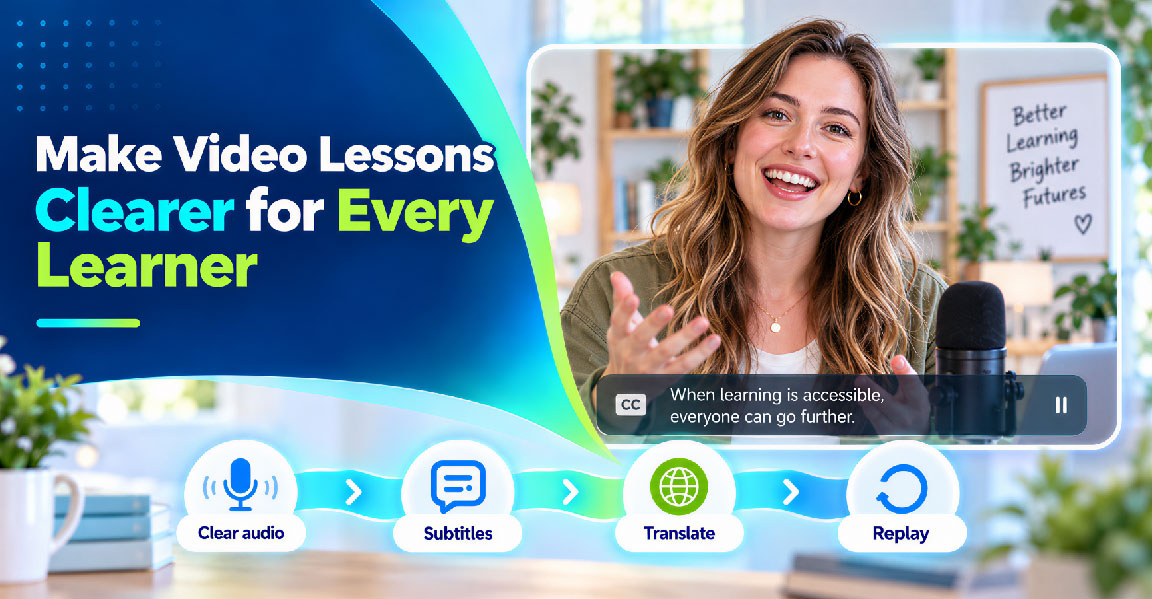
What makes an online lesson easy to follow?
Learners need more than clear video. They also need readable subtitles, comfortable pacing, and a simple way to review key points.
AI can help course creators plan lessons, draft scripts, create subtitles, and prepare translated versions. This guide explains how to use AI tools to make online courses clearer and more accessible.
Start with a clear lesson structure. Decide what learners need to understand and how you will explain it.
AI can create a first draft based on your topic, audience, and learning goals. Ask it to use plain language, explain technical terms, and divide complex ideas into smaller sections.
You can also ask AI to:
Treat the draft as a starting point. Add your own examples and teaching style so the lesson sounds natural.
Clear audio helps both learners and AI subtitle tools. Record in a quiet space, keep the microphone at a steady distance, and reduce background noise.
Make a short test recording before filming the full lesson. Check the volume, echo, pronunciation, and pacing. Short pauses also give learners time to process important points and help create better subtitle timing.
Once your video is ready, you can use an AI subtitle tool to turn the course audio into written subtitles. AI can also match the subtitles to the timing of the video.
Upload the lesson video to an AI subtitle tool and select the language spoken in the recording. The Video Subtitle Generator can help you turn video speech into subtitles without typing every line or adding timecodes by hand.
Before you start, make sure:
✔️ AI has access to your video lesson.
✔️ The course language is supported.
✔️ The tool can process the video format.
Automatic transcription saves time, but it is not always perfect. AI may misunderstand technical terms, names, or words affected by background noise. Plan to review the result before publishing.
Choose the language spoken in the video and adjust the subtitle settings to suit the lesson. Educational content often includes longer explanations and unfamiliar terms, so readability matters.
Depending on the tool, you may be able to adjust:
Keep each segment short enough to read comfortably. At the same time, avoid breaking a sentence in the middle of an important idea.
Pick your language and settings, then generate a subtitle draft in just a few clicks. That’s it — AI handles the first pass for you.
AI can listen to the audio, identify the spoken words, and turn them into written text. It can also detect when each phrase begins and ends, then match the subtitle timing to the video. This keeps the text in sync with the speaker instead of displaying every line at fixed intervals.
The result is usually accurate enough to create a solid first draft, especially when the recording has clear audio and little background noise. Still, factors such as accents, fast speech, overlapping voices, and technical terms can affect how accurately AI picks up the audio.
Next, check the wording and course terminology to make sure everything is accurate.
A quick edit can make the difference between subtitles that are merely available and subtitles that are genuinely useful. Focus on both the words and the way they appear on screen.
AI speech recognition tools can misunderstand words that sound alike. This happens more often with scientific terms, product names, abbreviations, names, and industry-specific language.
Compare the subtitle text with your original script or the video itself. Correct important terms and make sure the same word is written consistently throughout the course.
AI tools can also help you look for:
AI automatically syncs subtitles with the video lesson, so you can click any subtitle line to jump back to the exact moment. Watch the matching video part to check important information. You know the subject best, so you are the right person to make the final call.
Subtitles should be easy to read without distracting learners from the lesson. Use a clear font, a comfortable text size, and strong contrast against the video background.
Use the AI subtitle editor to make a few quick changes:
✔️ Choose a clear, easy-to-read font.
✔️ Set a comfortable text size.
✔️ Keep subtitles away from important diagrams and labels.
✔️ Add enough spacing between lines.
✔️ Limit the number of lines shown at once.
✔️ Preview the subtitles in videos with different aspect ratios.
These settings help subtitles stay readable across different video layouts and screen sizes. Always preview the full video before exporting to check the final result.
Once the original subtitles are accurate, you can create versions in other languages. This makes your course more useful to learners from different regions.
Start with the reviewed subtitle file in the original language. Do not translate an unfinished file, because transcription mistakes can carry over into every translated version.
A practical workflow looks like this:
A word-for-word translation may sound unnatural or change the meaning of a teaching example. AI can provide a helpful first version, but a fluent reviewer should check important course content whenever possible.
For courses with specialized vocabulary, ask AI to create a simple terminology list. This helps keep key terms consistent across lessons and language versions.
Keep your subtitle files organized from the start. Clear file names make it easier to find the right version when you update a lesson.
The AI subtitle tool can export subtitles in different formats, including TXT, SRT, and VTT. Keep the original-language file separate from translated versions, and choose the format that works best for your course platform or video editor.
If you update the video script later, edit the original subtitle file first, then revise the translated versions. Since the subtitles are stored as separate files, you can update the text and timing without rebuilding the entire video from scratch. That makes future course updates much easier.
Give the complete lesson a final test before publishing. Watch it as a learner would, from start to finish, and make sure the subtitles work smoothly with the video.
Pay attention to the overall experience:
Try the lesson on different devices if possible. A layout that looks fine on a large monitor may feel crowded on a phone. You can also ask someone unfamiliar with the course to watch one lesson and share their first impression. They may notice confusing transitions or small issues that you have overlooked.
A video lesson may look complete when the recording is finished — but is it ready for every learner?
A student may need to read along instead of listening. Another may want to review one explanation several times. Someone else may understand the lesson better in another language. Small details can make a big difference to their experience.
You do not need to rebuild your entire course to make it more accessible. Start with a clear script, clean audio, accurate subtitles, and a careful final review. With AI handling much of the repetitive work, you can spend more time improving the explanations and creating lessons that feel clear, thoughtful, and welcoming.
How can AI help create accessible video lessons?
AI can help with lesson planning, script drafting, speech transcription, subtitle timing, translation, and subtitle editing. It reduces repetitive work and gives course creators more time to focus on clear explanations and learner needs.
What is the best way to create subtitles for an online course?
Upload the lesson video to an AI subtitle tool, select the spoken language, and generate a subtitle draft. Then review the wording, timing, terminology, and layout before exporting the final file.
Can AI create subtitles in multiple languages?
Yes. AI can translate an original subtitle file into multiple languages. Review each version for natural wording, technical terms, timing, and readability before adding it to your course.
Why should I review AI-generated subtitles?
AI may misunderstand unclear audio, names, abbreviations, or specialized terms. A careful review helps correct these mistakes and ensures that the subtitles match the lesson accurately.
How long should subtitles remain on screen?
Subtitles should stay on screen long enough for learners to read comfortably. Keep each segment concise, avoid displaying long sentences too quickly, and divide the text at natural points.
How can I make subtitles easier to read?
Use a clear font, a comfortable text size, strong contrast, and suitable line spacing. Keep subtitles away from important visuals, and preview the video on different screen sizes before publishing.


Discover our other works at the following sites:
Danetsoft is a global web agency headquartered in Indonesia, specializing in web development, managed hosting, and web publishing platform.


 [email protected]
 Magelang, Central Java
 © 2026 Danetsoft. Powered by HTMLy