Deleting the wrong file from a hard drive can feel like a disaster, especially when the lost data includes work documents, family photos, project files, or videos you have not backed up yet. The good news is that deletion does not always mean your data is gone forever. In many cases, files removed from a hard drive on Windows or Mac can still be recovered if you act quickly and avoid writing new data to the drive.
This guide explains what happens when a file is deleted, what you should do immediately after data loss, and how to recover deleted files from a hard drive safely on both Windows and Mac. If built-in options do not help, a dedicated tool such as recoverit can make the process easier for users who need a guided recovery workflow.
In many situations, yes. When you delete a file, the operating system often removes the reference to the file rather than erasing the content instantly. Until that storage space is overwritten by new data, recovery may still be possible.
That said, the chance of recovery depends on several factors:
For traditional hard disk drives, recovery is often more feasible if you stop using the device right away. For SSDs, recovery can be less predictable because TRIM may permanently clear deleted data faster. That is why timing matters.
Before trying any recovery method, take these precautions:
These first steps are important because they can improve recovery odds and prevent accidental data overwriting.
Below is a practical three-step process that works for many common deletion scenarios.
Sometimes the easiest fix is the right one. On both operating systems, start with built-in locations before using third-party tools.
On Windows
On Mac
For recently deleted items, built-in recovery may be enough. If not, move to the next step without using the drive too much.
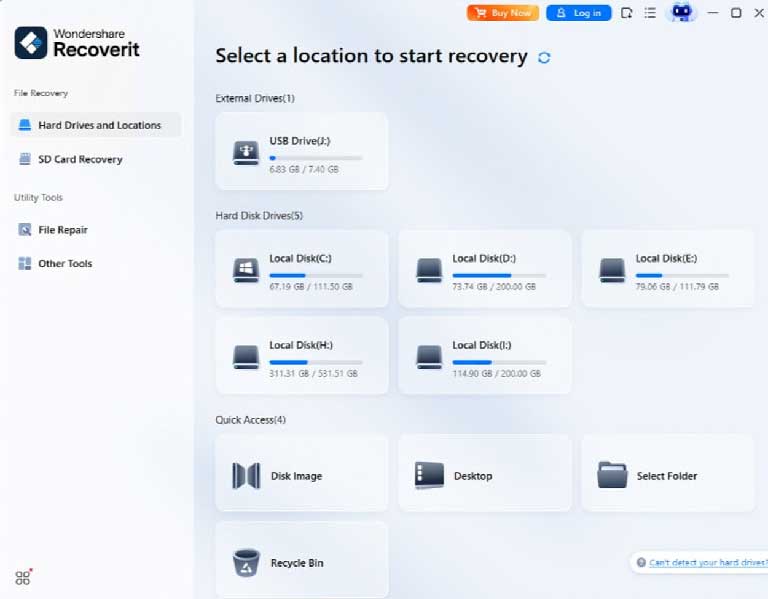
If the file is no longer available in Recycle Bin, Trash, or backups, recovery software is usually the next option. A recovery tool scans the hard drive for deleted entries and recoverable file fragments.
A practical option for many users is Windows Data Recovery for PC-based recovery tasks, while Mac users can use the corresponding Mac version when recovering files from HFS+, APFS, exFAT, and other supported storage formats. For users dealing specifically with deleted content on internal or external disks, a focused hard drive recovery workflow can also be helpful.
If you need Mac-specific recovery guidance, Wondershare also provides Mac Data Recovery for Apple users who need to recover deleted files from a hard drive, external disk, or formatted storage device.
When choosing a recovery tool, look for features such as:
To improve safety, install the tool on a different drive than the one where the files were deleted.
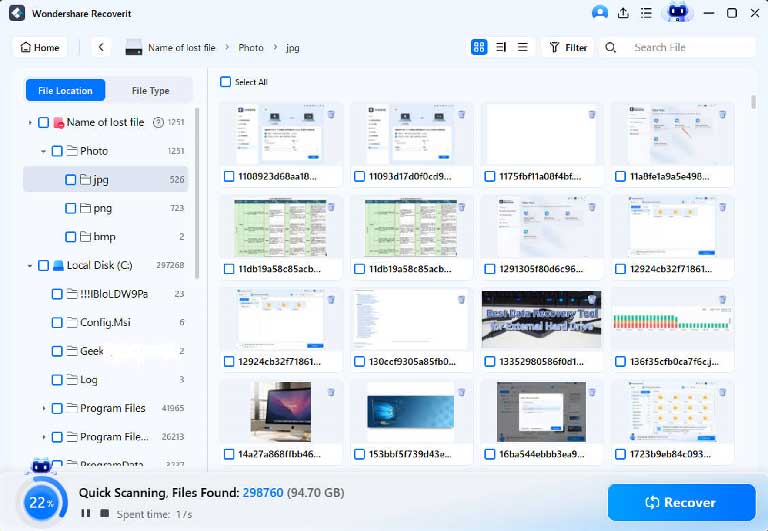
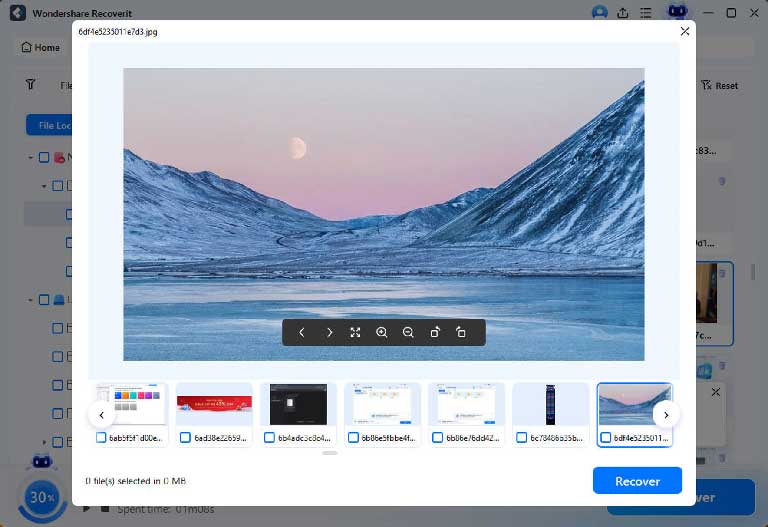
After the scan finishes, review the results carefully.
Saving recovered files back to the same hard drive may overwrite other deleted data that has not been restored yet. To stay safe, use another internal partition, an external drive, or cloud storage as the recovery destination.
If you are recovering business files or media projects, check whether the restored files open normally before deleting any temporary recovery results.
The process is very similar for an external hard drive on Windows and Mac. However, there are a few extra things to remember:
External hard drives are commonly used for photos, video editing assets, backups, and document archives, which makes accidental deletion especially stressful. In these cases, a scan-and-preview workflow is often easier than relying only on manual system checks.
Yes, sometimes. Emptying Recycle Bin or Trash removes the easy restore option, but the underlying file data may still remain on the hard drive until it is overwritten. Recovery software is often used in this stage.
However, results can vary depending on:
This is why it is best to start recovery as soon as you notice the data loss.
Some situations reduce the chance of successful recovery:
TRIM can clear deleted data faster than a traditional hard drive. Recovery may still be possible in some cases, but it is generally less predictable.
If you kept using the hard drive, installing apps, downloading files, or exporting media, parts of the deleted data may already be overwritten.
If the hard drive makes clicking sounds, disappears randomly, overheats, or disconnects during use, the problem may be hardware-related. In such cases, continued use can make recovery worse.
Severe corruption can affect filenames, folder structure, and data integrity, which means you may recover files without their original paths or names.
Many users reduce their own recovery chances by acting too quickly in the wrong direction. Try to avoid these mistakes:
A careful recovery process usually works better than a rushed one.
The core recovery logic is similar on both systems, but the environment is different.
That means the article topic is highly relevant for Recoverit because it naturally connects to both Windows users and Mac users without forcing an overly promotional angle.
If you want the best possible outcome, follow this simple rule set:
These steps do not guarantee recovery in every case, but they are widely recommended because they reduce avoidable risks.
Recovering deleted files from a hard drive on Windows and Mac is often possible, especially when you act quickly and avoid overwriting the device. Start with the simplest options such as Recycle Bin, Trash, and backups. If those fail, a guided recovery tool can help scan the drive, preview recoverable files, and restore them safely to another location.
For users who want a practical recovery workflow rather than trial and error, recoverit offers a straightforward way to handle common deletion scenarios across different storage devices. If your main need is PC recovery, Windows Data Recovery is the most direct entry point. If the issue is tied specifically to deleted data on an HDD or external disk, the dedicated hard drive recovery page is also relevant. And for Apple users managing creative files, archives, or external disks, Mac Data Recovery provides a more targeted Mac pathway.
The key is to treat the drive carefully, avoid unnecessary writes, and recover important files before trying other repair operations.


Discover our other works at the following sites:
Danetsoft is a global web agency headquartered in Indonesia, specializing in web development, managed hosting, and web publishing platform.


 [email protected]
 Magelang, Central Java
 © 2026 Danetsoft. Powered by HTMLy