Has your computer been freezing unexpectedly or crashing without warning? You’re not alone — random PC freezes and crashes are some of the most frustrating issues any user can face. The good news is that most of these issues can be resolved with the right steps.
In this ultimate 2026 guide, we’ll walk you through the best methods to fix PC crashes and freezes, including optimizing drivers with the powerful third-party tool Driver Booster 13.
Follow this guide to restore your computer’s stability, prevent future crashes, and enjoy a smoother, more reliable PC experience.
There are several common reasons why your PC keeps freezing or crashing. Learning about the main causes can help you fix the problem faster. Here are the top reasons why PC experience crashes and freezes:
Outdated or Corrupted Drivers: One of the common causes of PC crashes and freezes is outdated or corrupted drivers. When drivers are outdated, missing, or corrupted, your hardware may not function properly.
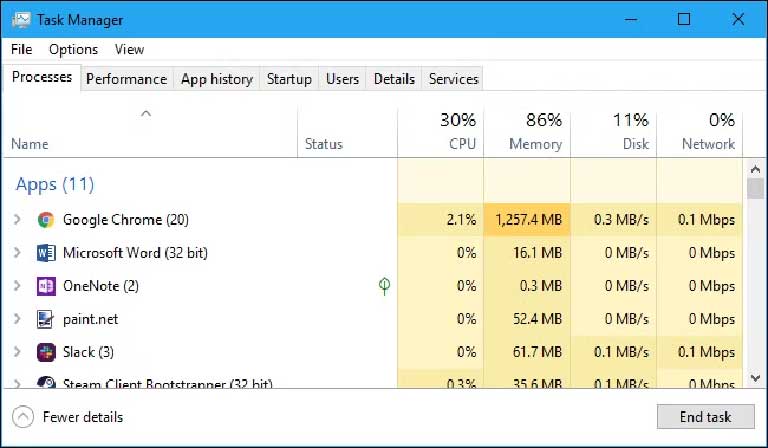
Insufficient RAM: RAM acts as your computer’s short-term working space. When your system runs out of available RAM, it struggles to manage active processes efficiently, leading to system crashes and freezes.
Malware or Virus Infection: Malware and viruses are another major cause of PC crashes and freezes. Some malware corrupts crucial system files or interferes with drivers, making the system unstable or completely unresponsive.
Overheating: Overheating is a common reason computers crash and shut down automatically. When components like the CPU or GPU get too hot, the system may slow down or power off to prevent hardware damage.
We all know that PC crashes or freezes can be irritating, especially when they interrupt daily tasks. Don’t worry! Below, we’ve mentioned the top solutions that fix PC crashes and freezes quickly.
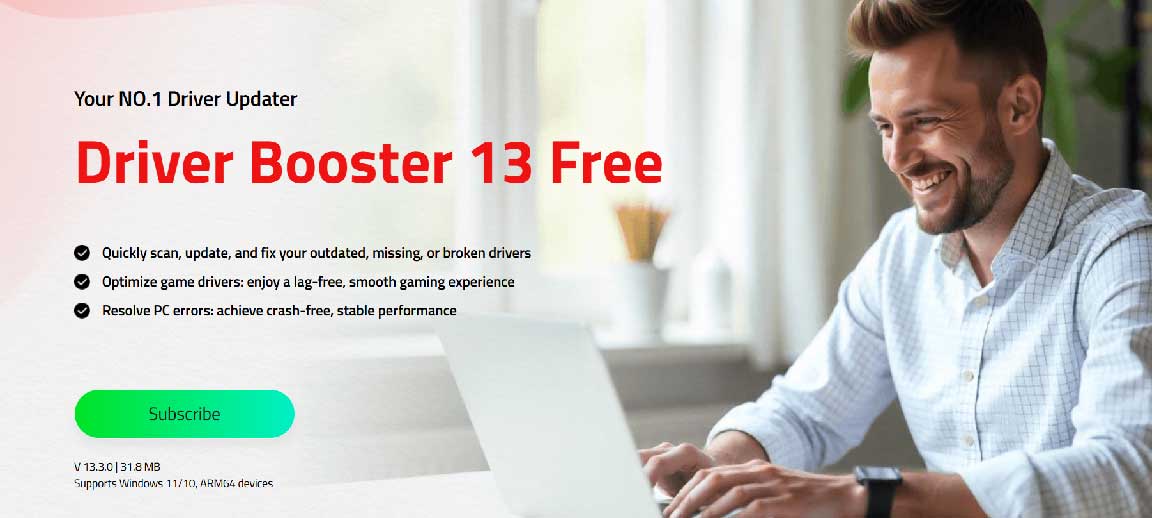
Outdated drivers are one of the leading causes of PC crashes and freezes. That’s where Driver Booster 13 comes in. This third-party tool automatically scans, updates, and fixes your outdated, missing, or broken drivers with a single click. It saves time and eliminates the need to manually search for the correct drivers online. Additionally, Driver Booster 13 offers features like backup and restore options, ensuring you can roll back changes if needed.
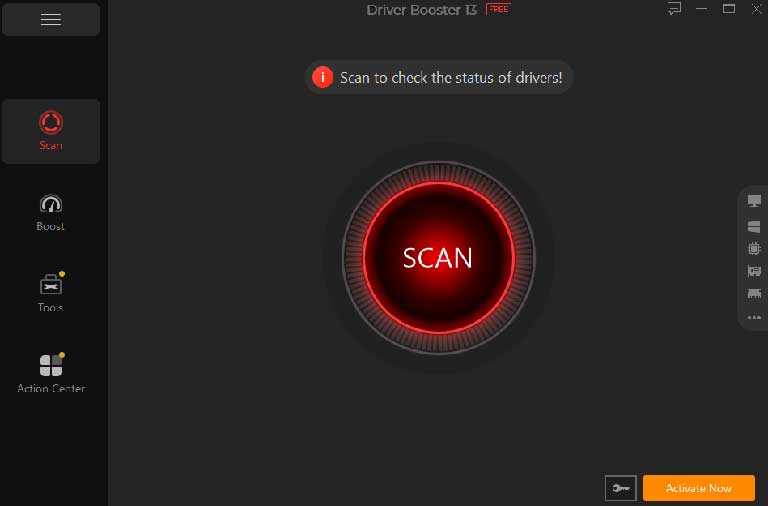
Automatically Scan and Update Drivers: Hit the “Scan” button, and the program will automatically detect missing, outdated, and corrupted drivers on your system.
Dual Certification: All drivers available on Driver Booster 13 have passed both WHQL certification and the IObit Test, helping you reduce the risk of installing faulty drivers.
18 Million PC Drivers: The program includes 18 million drivers, including graphics cards, sound cards, network adapters, printers, and more.
1200+ Major Brands: Its database delivers manufacturer-certified drivers from 1200+ major brands, such as INTEL, AMD, ASUS, NVIDIA, Song, LG, MSI, and Samsung.
Backup and Restore: Driver Booster 13 lets you back up your drivers and restore them where needed, providing an extra layer of safety.
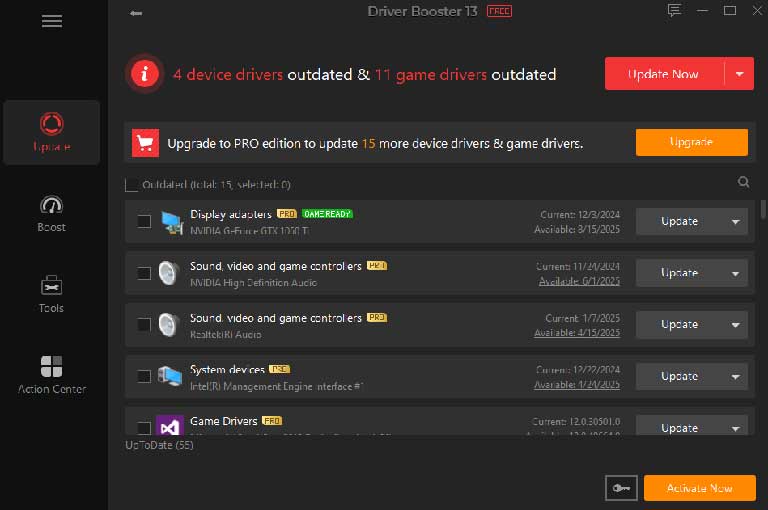
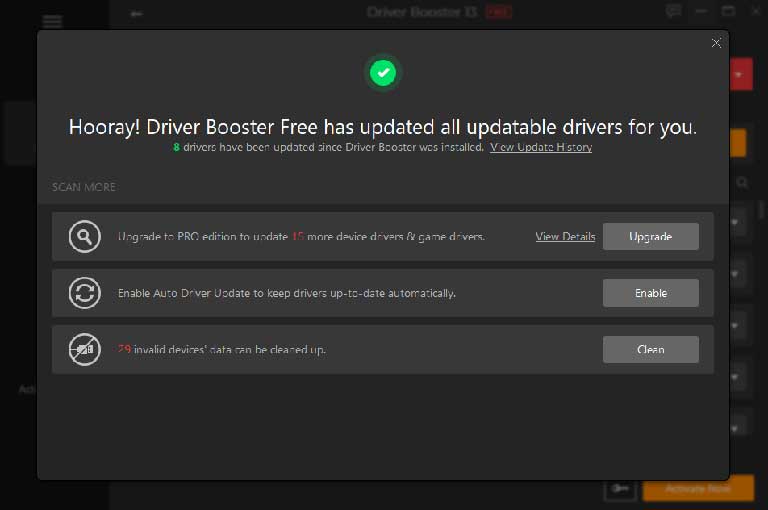
Follow the instructions below to update PC drivers with Driver Booster 13 and get rid of crashes and freezes:
If your device is frozen or is stuck on a blank screen, you should try restarting it with a soft reboot. This helps clear temporary glitches in the system memory and resolve minor crashes or freezes. Here is how to do it:
![][image5]
Some antivirus software may mistake certain files or operations as potential threats. This can trigger real-time scanning functions that consume system resources, leading to freezing or crashing. Disabling the antivirus software can help you solve this issue in no time. Here is how to do it:
If you’re facing PC crashing and freezing, then this guide is the best option. We’ve mentioned the main reasons behind these issues and provided effective methods to fix them quickly. Our top recommendation is Driver Booster 13, a powerful driver updater that automatically detects outdated or missing drivers and updates them with a single click.


Discover our other works at the following sites:
Danetsoft is a global web agency headquartered in Indonesia, specializing in web development, managed hosting, and web publishing platform.


 [email protected]
 Magelang, Central Java
 © 2026 Danetsoft. Powered by HTMLy