 Photo by Cemrecan Yurtman on Pexels
It's 4 p.m. on a Friday, and Rina is exporting the same 20-second video for the third time. Her four-person web agency launches a client's new site on Monday, and the launch clip has to go out in three shapes: vertical for Reels and TikTok, square for the feed, and widescreen for the client's homepage. Every version needs its captions lined up again by hand, first in English, then in Indonesian.
The tool still works. It just eats the same fiddly hour every week, and the agency pays for four seats while two people actually open it.
That's usually when people start looking at video editing tool alternatives. The search goes better if it starts with your own videos instead of someone else's feature list.
Teams rarely switch because a tool breaks. More often a small annoyance has turned into part of the weekly routine, and someone finally adds up the hours.
The most common sign is a manual job you repeat on every project, like rebuilding a layout for each aspect ratio. Paying for seats or features nobody uses is another. So are exports that keep coming back for fixes: captions out of sync, text cropped on a phone, a file too heavy for the client's site.
Rina's third export of the same clip shows the first and last of those, and her seat count shows the second. Any one of them on its own might be a training problem. When all three turn up together, the tool and the work have probably drifted apart.
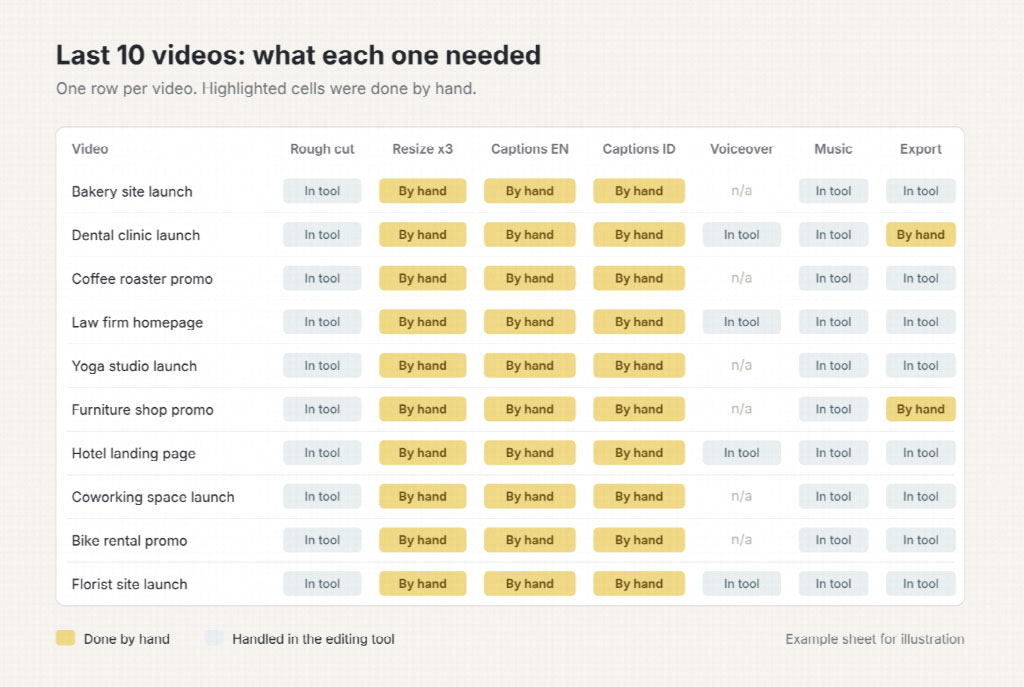
Before you look at anything new, open your last ten finished videos and write down every step each one went through: rough cut, resizing, captions, voiceover, music, export. A spreadsheet with one row per video is plenty.
Then mark which steps were done by hand and which took the longest. People tend to skip this part, and it ends up deciding everything else.
When Rina's team filled in the sheet, the editing itself was quick. The hours went into resizing every video three ways and typing two sets of subtitles. So the team doesn't need a more powerful editor. What would help is a short-form video workflow where resizing for social and captions take less hand work.
"Video editor" covers very different tools, and comparing across categories can waste an afternoon. You'll mostly run into four types:
Each suits a different job. A team cutting a documentary needs a timeline. A team turning out client launch clips every month may get by without one. Rina's spreadsheet points away from deeper editing control and toward a tool that handles captions and resizing with fewer clicks.
Start with the tool you use now. Some comparison sites are organized by the name of the product you're leaving, and a directory of alternatives to the big-name video tools works that way: look up what you currently pay for and read what each replacement focuses on. Use any comparison page as a starting point, then check its claims against your own spreadsheet.
As you narrow things down, look at how billing works (per seat or by credits), whether the free tier puts a watermark on exports, and what the terms say about commercial use. For an agency delivering client work, the watermark and the terms matter more than they first appear. A watermark on a test export is harmless. On a client's launch video, it's a problem you'll hear about.
Billing deserves a closer look in Rina's case. With four seats and two regular editors, a credit-based plan might suit the team better than a video editing subscription priced per person, though that could change in a month when client work piles up. Write down what a typical month would cost under each model.
Keep the shortlist to two or three tools. Any more and the testing becomes its own project.
A vendor demo uses footage picked to look good, so bring your own. Take one real job, with the same raw clips and the same delivery requirements, and run it through your current tool and each candidate.
Record two things for each: how long it took to reach a first version you'd actually send to a client, and how many manual fixes it still needed. Leave the extra features for later. If a tool can't beat your current setup on the job you do every week, a long feature list won't rescue it.
Rina used Monday's launch video. One candidate on her list was NemoVideo, which lets you edit by describing changes to its Nemo Agent, generates auto captions with Smart Caption, and pulls highlights out of raw footage with SmartPick. The Free plan includes 100 credits, enough for at least two video outputs, so she could try it on a real clip. Watermark-free export sits on the paid plans, though, so check that before planning to deliver anything from a free account.
Whatever tool produces the captions, read them line by line before they reach a client. Small timing slips and misheard words are easy to miss when you're busy comparing two tools.
Even a clear winner shouldn't replace the old tool overnight. Run both for one full cycle of work so that a missed setting doesn't land on a client launch.
Move over the things that make your videos look like yours first: brand fonts, colors, logo files and export presets. Then put the export specs on one page, covering aspect ratios, resolution, caption style and file naming, somewhere the whole team can find it. Whoever covers on a sick day shouldn't have to guess.
Think about where the finished videos end up, too. A launch clip on a client's site still needs a clear title, a transcript and supporting text around it, and this guide to creating SEO-friendly video content that ranks covers that side of the job. None of that changes when you change editors.
Rina's team made the call after that one launch video and recounted the seats they were paying for. Your version of that decision can start smaller. Open your last ten videos and write down every step you did by hand.


Discover our other works at the following sites:
Danetsoft is a global web agency headquartered in Indonesia, specializing in web development, managed hosting, and web publishing platform.


 [email protected]
 Magelang, Central Java
 © 2026 Danetsoft. Powered by HTMLy