A volunteer designer is preparing a poster for an imaginary neighborhood lantern walk. The draft shows paper lanterns hanging above an empty sidewalk. Then the organizers request a darker background, a vertical story version, and a short animated teaser. In a form-based generator, the designer might rewrite the prompt each time and track which exported file each revision used. The one instruction that matters most, keeping the lantern shapes while changing the street behind them, can get buried in the next prompt.
A chat-based AI image generator lets the designer refer to an earlier result and describe the next change in plain words. For this hypothetical job, the sequence has four turns: create a base image, change its background, reframe an approved version, then consider animation.Each turn gets inspected before the next one starts.
WaveSpeedAI's chat-based AI image and video generator lets a user describe an image, refer to a result in the same conversation, and request a further edit. The assistant writes a detailed prompt for the model from that plain-language request. It can also look at uploaded pictures and frames from uploaded videos when those are relevant to an edit. These help define a starting point, but the next output can still differ in places you did not ask to change.
In a form-based workflow, the designer carries the old image, prompt, and intended change across separate runs. A form suits tasks where exact settings matter most. Conversation helps when the task is exploratory: “What if the background changed, while this object stayed?” A result tag points to the prior image under discussion, but it does not lock composition, lettering, or object shape.
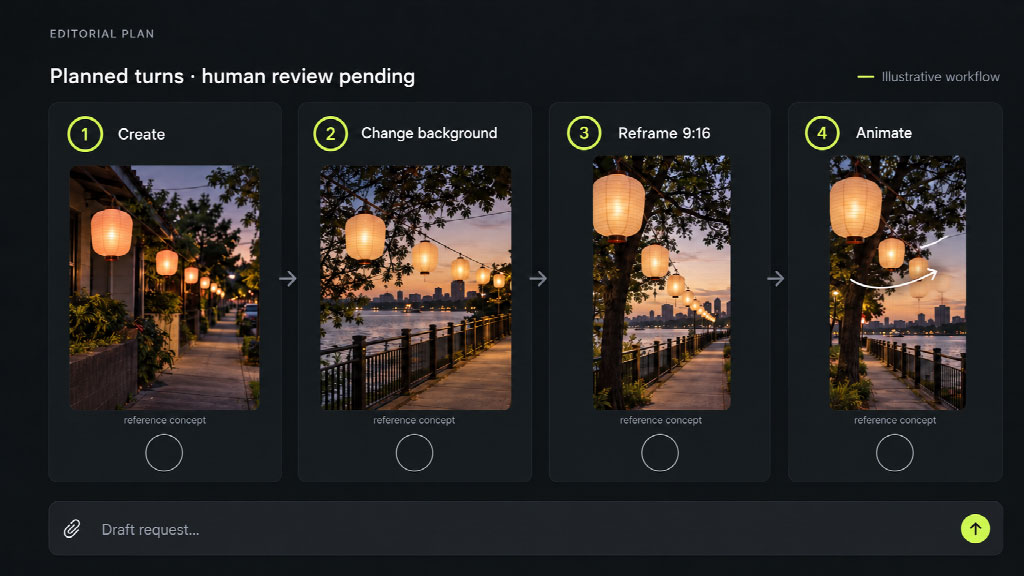
Each planned turn has a separate human check; no generated result is shown.
Here is a hypothetical conversational AI editing plan for the lantern poster. None of these requests has been run; the table describes what a person would inspect, not a model's output. The product page writes the tag as @image 1; use whatever tag appears in your own conversation.
| Turn | Planned request | What a person checks |
|---|---|---|
| 1. Create | “Illustrate paper lanterns over an empty neighborhood sidewalk at dusk. Leave space for event copy.” | Do the lanterns read clearly, and is there genuinely usable copy space? |
| 2. Change background | “Using @image 1, replace the street behind the lanterns with a quiet riverside path. Keep the lantern shapes.” | Did the path change without losing the main subject or inventing text? |
| 3. Reframe | “Using the latest approved image, make a 9:16 composition for a vertical story. Keep the lanterns and space for copy.” | Are key objects inside the new frame, or did reframing redraw them? |
| 4. Animate | “Using the approved vertical still, make a short video with gentle lantern movement and a steady viewpoint.” | Does the motion suit the scene, and are the planned charge and final frames acceptable? |
Start with the least constrained image. If the first draft lacks copy space, fix that before changing the setting; otherwise the next turn mixes two problems. After the background request, compare the output with the approved base image. A changed lantern silhouette would be reason to revise or return to the earlier tag.
An acceptance note could read, “Lanterns recognizable; upper third clear for the date; no rendered event lettering.”
Treat the third turn as a layout decision. A tall frame is not a lossless crop and may redraw parts of the scene, so check its edges and the space reserved for event text before approval. For animation, point to the approved vertical still by whatever tag it received instead of reusing @image 1 out of habit.
The phrase “make it better” leaves too much to interpretation. Specify the background as the change and the lanterns' shape and placement as retained elements. If the new image changes both, identify the unwanted difference before another edit. Several vague corrections in one message make it harder to tell which instruction helped.
An uploaded reference image may clarify which lanterns matter. It does not guarantee exact identity, pixel-level editing, or correct lettering. Compare the approved file and the candidate at the poster's display size. A tiny preview can hide distorted copy or a missing lantern.
If a revision damages a required element, return to the last acceptable tag and change one instruction. Continuing from a flawed candidate treats the flaw as part of the new baseline. For a handoff, record the approved version outside the chat.
Keep final event facts in a separate approved copy file. The designer could lay out the date and venue in a conventional editor after choosing the image. That way the generator handles only the visuals, and the organizer can check the words directly.
The product page says users can name a model in the message; the official introduction also describes choosing one from a menu. That helps when a team has a reason to use a particular model, though it is worth checking that the model accepts the intended input and output settings. For the four-turn plan, switch models only when the task calls for it.
The image-to-video request changes the spending decision. Under Ask first, the service presents a plan and price before making anything. Under Just make it, images run right away, while a video still shows its price for confirmation. Full auto makes images and videos immediately, so it is unsuitable when a person must inspect the video charge first. Check the current mode before submitting the animation turn and review the price shown for that plan. A reusable workflow should not hard-code a rate.
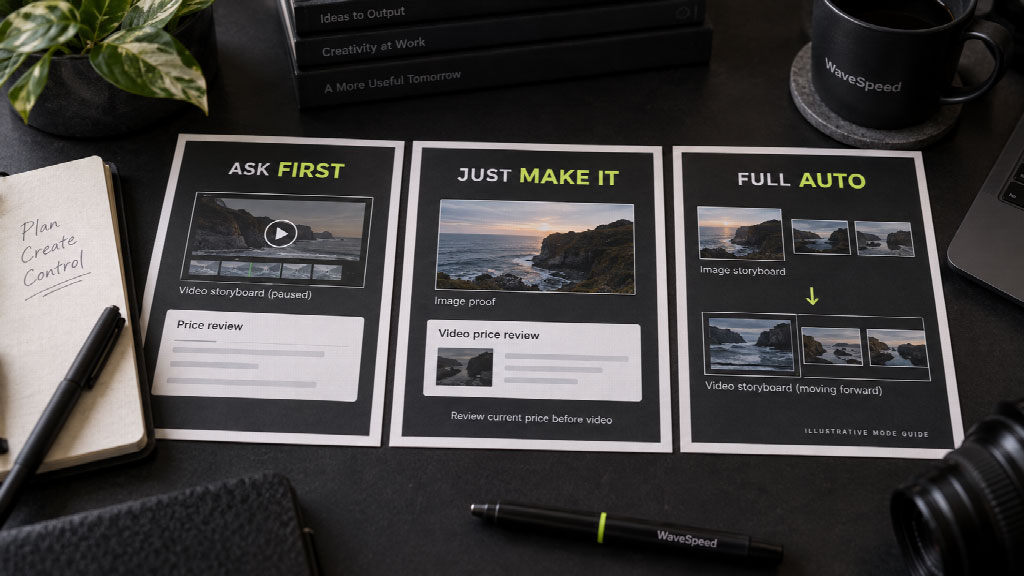
A conversation suits exploring whether the lantern poster should become a moving scene. A production brief specifying an exact lens, lighting setup, era, and camera move calls for more control. WaveSpeedAI's official Chat introduction points to a dedicated directing panel for that sort of shot. Chat can still receive camera language.
For the imaginary event, a gentle movement request may be enough to test an idea. A brief that requires a particular move should start with a shot list and a tool that exposes those controls. Manual storyboarding and traditional editing are also options. The deciding factor is how closely the motion must match the brief.
If the camera path must match a storyboard frame by frame, a single conversational instruction leaves too much open. Record the required move and test it against the exported clip, whichever route produced it.
The chat transcript records intentions. The exported image or video is what the team would publish. Open that file at its intended display size. Check aspect ratio, text space, lantern shapes, and frame edges. In the video, inspect the start, middle, and end for changes to the main objects. Confirm source art is cleared for this use and the file meets the destination's specifications.
If one detail fails, name the failed detail and return to the last approved tag. If several core details fail, rebuild from the approved still instead of stacking new requests on a broken version.


Discover our other works at the following sites:
Danetsoft is a global web agency headquartered in Indonesia, specializing in web development, managed hosting, and web publishing platform.


 [email protected]
 Magelang, Central Java
 © 2026 Danetsoft. Powered by HTMLy